
Ever opened your iPhone and thought, “Why is my battery dying so fast?” or “Did I just send that message?” Yeah — that uneasy feeling could mean someone’s sneaking into your phone.
Even though iPhones are famous for their top-notch security, they’re not completely hacker-proof. Clever phishing scams, shady Wi-Fi connections, and rogue apps can sneak in and cause damage before you even notice. By the time you do, your data, photos, or private info might already be at risk.
In this guide, we’ll walk through the telltale signs your iPhone might be hacked, how to check it step by step, and what to do to lock it down again. No tech jargon, no fluff — just clear, real-world advice to keep your device safe.
Why iPhones Can Still Get Hacked
Let’s clear one myth right away: yes, iPhones can be hacked. While Apple’s ecosystem is more secure than Android’s, no system is 100% invincible. Here’s why.
Hackers usually exploit user behavior, not the phone itself. Clicking a fake link, downloading an unverified app, or connecting to public Wi-Fi without precautions can all open the door to trouble.
Common hacking methods include:
- Phishing attacks — Fake Apple ID login pages or scam texts that trick you into sharing credentials.
- Spyware or stalkerware — Apps installed secretly to monitor messages, calls, or location.
- Jailbreaking — Removing Apple’s security restrictions, which increases exposure to malware.
- Public Wi-Fi traps — Hackers setting up fake networks that steal your information.
So yes, even the sleekest iPhone isn’t immune — especially if you’re not cautious about what you click or install.
Clear Signs Your iPhone Might Be Hacked
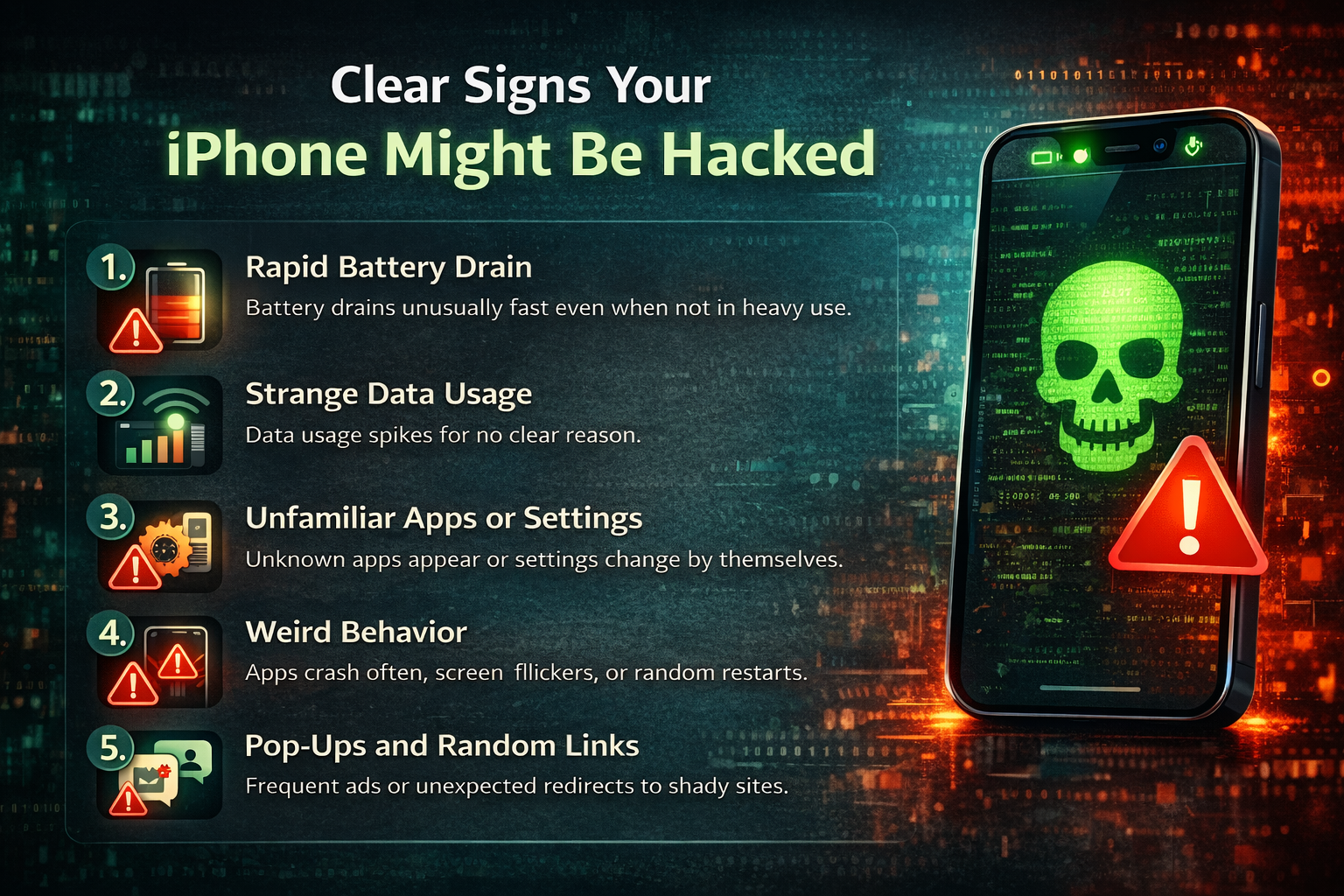
Here’s where you start noticing something’s off. These are the red flags that should make you pause and check your device carefully.
1. Rapid Battery Drain
If your iPhone’s battery is running out much faster than usual — even when you’re not using it heavily — something could be running in the background. Spyware and malicious apps often drain your battery as they secretly transmit your data.
2. Strange Data Usage
Ever checked your data plan and wondered where all that bandwidth went? Excessive data usage is another classic sign. A hacked iPhone might constantly send information to unknown servers without your knowledge.
3. Unfamiliar Apps or Settings
If you notice new apps you don’t remember installing, or settings that seem mysteriously changed, take it seriously. Hackers can install remote-access apps disguised as harmless utilities.
4. Weird Behavior
Apps crashing often, your screen flickering, or your iPhone randomly restarting — all can indicate that something’s interfering with your system.
5. Pop-Ups and Random Links
Apple’s ecosystem rarely shows intrusive pop-ups. If you’re suddenly bombarded with ads or redirected links, you may have installed a malicious configuration profile or visited a phishing site.
6. Unknown Messages or Calls
Are your contacts receiving weird texts from you that you didn’t send? That’s a red flag that someone’s hijacked your Apple ID or messaging apps.
If you recognize more than one of these signs, it’s time to take action immediately. And if you’d like to dig deeper into specific methods and tools for identifying breaches, check out this detailed security breakdown on how to tell if your iPhone is hacked. It walks you through additional checks and preventive measures you can use right now.
How to Tell If Your iPhone Is Hacked (Step by Step)
Spotting the signs is one thing — confirming them is another. Here’s how to verify if your iPhone has been compromised.
Step 1: Check Installed Apps
Go to Settings → General → iPhone Storage. Look for unfamiliar or recently installed apps. Tap into them — if they show odd names or permissions, delete them immediately.
Step 2: Review Data Usage
Head to Settings → Cellular → Cellular Data Usage. Check for apps consuming excessive data in the background. If you find something suspicious, uninstall or restrict its access.
Step 3: Inspect Apple ID and iCloud Sessions
Visit Settings → [Your Name] → Devices. You’ll see all devices connected to your Apple ID. If any device looks unfamiliar, tap it and select Remove from Account.
Step 4: Review Purchase History
Go to your Apple ID account page and check for unauthorized purchases. Hackers often buy subscriptions or apps using compromised IDs.
Step 5: Run a Security Audit
Though iPhones don’t have antivirus apps like Android, you can still run checks using trusted tools such as Malwarebytes or Avast Security for iOS. These tools can detect malicious profiles or network attacks.
If anything looks off during these steps, it’s time to clean up.
What to Do If Your iPhone Is Hacked
Here’s the recovery plan — quick, effective, and safe.
1. Change All Your Passwords Immediately
Start with your Apple ID, then move on to key accounts: email, banking, and social media. Use strong, unique passwords. Better yet, use a password manager like 1Password or Bitwarden.
2. Enable Two-Factor Authentication (2FA)
This adds a second layer of security even if someone has your password. You can enable it from Settings → [Your Name] → Password & Security.
3. Update iOS
Apple regularly releases security patches that close known vulnerabilities. Go to Settings → General → Software Update and install the latest version.
4. Remove Suspicious Profiles
Some hacks work through configuration profiles. Go to Settings → General → VPN & Device Management, and delete any unknown profiles.
5. Reset Your iPhone (As a Last Resort)
If the issues persist, back up your data to iCloud or iTunes, then perform a factory reset. Go to Settings → General → Transfer or Reset iPhone → Erase All Content and Settings.
Once done, set it up as a new device — don’t restore from a potentially infected backup.
6. Notify Apple Support
If you believe your Apple ID or device has been compromised, contact Apple Support immediately. They can guide you through restoring your account and securing your data.
How to Protect Your iPhone from Future Hacks
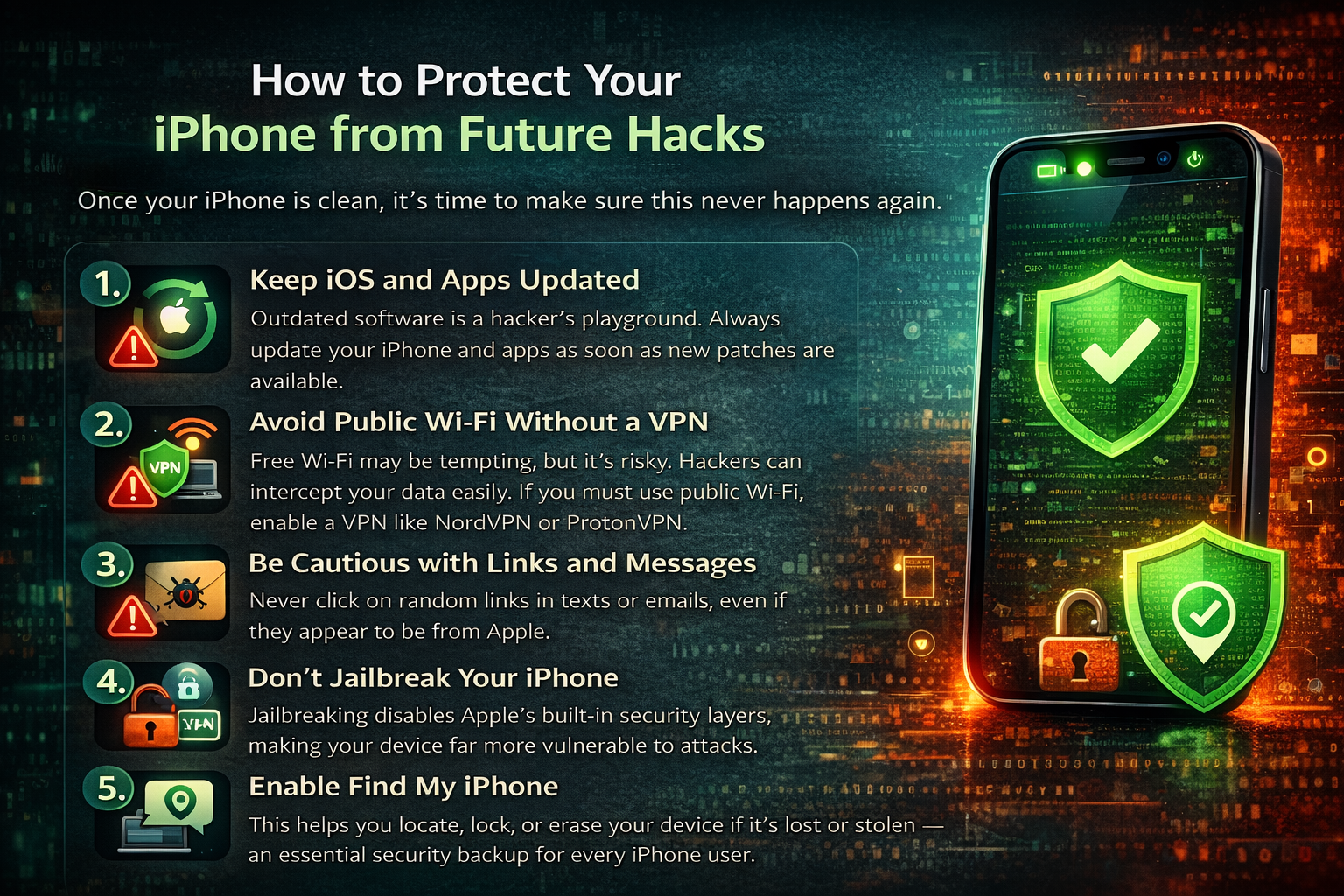
Once your iPhone is clean, it’s time to make sure this never happens again.
Keep iOS and Apps Updated
Outdated software is a hacker’s playground. Always update your iPhone and apps as soon as new patches are available.
Avoid Public Wi-Fi Without a VPN
Free Wi-Fi may be tempting, but it’s risky. Hackers can intercept your data easily. If you must use public Wi-Fi, enable a VPN like NordVPN or ProtonVPN.
Be Cautious with Links and Messages
Never click on random links in texts or emails, even if they appear to be from Apple. Phishing is one of the most effective ways hackers access your info.
Don’t Jailbreak Your iPhone
Jailbreaking disables Apple’s built-in security layers, making your device far more vulnerable to attacks.
Review App Permissions Regularly
Go to Settings → Privacy & Security, and check what permissions each app has. Revoke access for apps that don’t need it.
Enable Find My iPhone
This helps you locate, lock, or erase your device if it’s lost or stolen — an essential security backup for every iPhone user.
Highlight Summary: The Takeaway
Your iPhone might look sleek and secure, but digital threats evolve daily. Knowing how to tell if your iPhone is hacked is no longer optional — it’s essential.
Here’s the short version:
- Watch for weird behavior, new apps, or excessive battery drain.
- Check your Apple ID, data usage, and device connections regularly.
- Update your iOS, enable 2FA, and avoid risky links.
- When in doubt, reset your iPhone and contact Apple Support.
The best part? Once you understand these signs and routines, you’ll never panic over a weird pop-up or glitch again. You’ll know exactly what to look for — and how to fix it fast.
FAQs About iPhone Hacking
Q1: Can iPhones get viruses like Android phones?
Not exactly. iPhones are less prone to traditional viruses, but they can still be compromised through malicious apps, phishing, or spyware.
Q2: How can I tell if my iPhone camera or mic is being used?
Watch for the orange or green dot on your screen’s top-right corner. It indicates your mic or camera is active — even if you didn’t turn it on.
Q3: Will resetting my iPhone remove hackers?
Yes, a full factory reset removes all malware or spyware. Just make sure you don’t restore from an infected backup.
Q4: Are antivirus apps useful for iPhones?
While Apple restricts deep scanning, some security apps like Malwarebytes and Lookout can help detect phishing attempts and suspicious profiles.
Q5: Can someone hack my iPhone through Wi-Fi?
Yes, if you connect to a rogue or fake Wi-Fi network. Always use secure, password-protected networks or a VPN.
Q6: How do I know if my Apple ID is hacked?
If you receive security alerts, login attempts from unknown locations, or see purchases you didn’t make — change your Apple ID password immediately.